Intercepting Android app traffic
I recently needed to review a new Android app. But since my Android test phone now runs Android 8.1, running SSL traffic through Burp is not that easy anymore (https://android-developers.googleblog.com/2016/07/changes-to-trusted-certificate.html).
After moderate cursing, I decided to shortly document the process. So without further ado, here we go.
Download the Android app you want to monitor from Play Store. Unpack the APK file using apktool (https://ibotpeaches.github.io/Apktool). Initially I used the version distributed with Kali Linux (Apktool v2.4.0-dirty) but it didn’t work properly, so I downloaded v2.4.0 from the official site and this worked without problems:
# java -jar apktool_2.4.0.jar d -s app.apk
By following the information here https://developer.android.com/training/articles/security-config and https://android-developers.googleblog.com/2016/07/changes-to-trusted-certificate.html we can make the app trust a user added certificate. First we add the following to the manifest file:

Then we create a new file (res/xml/network_security_config.xml) and add the following:
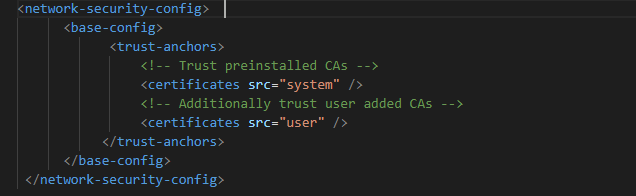
Building the APK file again didn’t work at first, turned out we first needed to purge temp data and then the build worked:
# java -jar apktool_2.4.0.jar empty-framework-dir -f

# java -jar apktool_2.4.0.jar b -v Appdir
We still need to sign the app, so lets generate a key and sign the APK file:
# keytool -genkey -V -keystore key.keystore -alias johndoe -keyalg RSA -keysize 2048 -validity 1000

# jarsigner -verbose -sigalg SHA1withRSA -digestalg SHA1 -keystore key.keystore app.apk johndoe
To make the app run more efficiently, we can use:
Zipalign is an optimization process that is performed on an application that allows it to run more efficiently after signing. Zipalign will restructure the resources in an APK along 4-byte boundaries.
For instance:
# zipalign -v 4 com.android.apk app.apk
Enable Android “Developer options” (https://developer.android.com/studio/debug/dev-options) and enable USB debugging so your Android device can communicate with your development machine through Android Debug Bridge (adb). Note that the “root” command does not work.
Lets install the app via ADB (https://developer.android.com/studio/command-line/adb.html):
# adb devices

* daemon not running; starting now at tcp:5037

* daemon started successfully

List of devices attached

01e6d5e80be1c031        device

# adb devices -l

List of devices attached

01e6d5e80be1c031       device product:bullhead model:Nexus_5X device:bullhead transport_id:1

# adb install -r app.apk

Performing Streamed Install

Success
Now all we need to do is get the Burp certificate and install it (https://support.google.com/nexus/answer/2844832?hl=en). This certificate must be named .crt – otherwise Android will not recognize it…
And then – success:
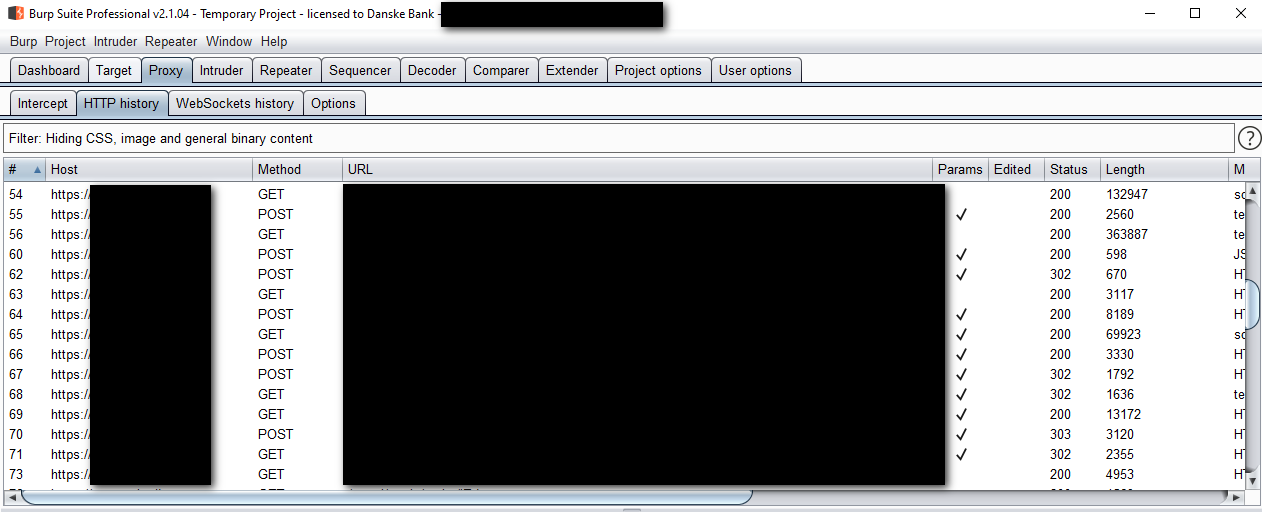
And yes, this was the short version.